Showing posts with label Review. Show all posts

Sunday, July 7, 2013

AL13 slate
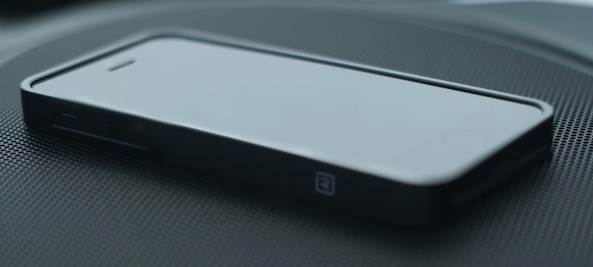
Aluminum is ubiquitous with Apple products, and to emphasize that association, case manufacturer “M” released a new iPhone bumper case simply named “AL13.” For the less science savvy folk, Aluminum, abbreviated “AL” is atomic number 13. Now, with a brief periodic table lesson out of the way, what makes this case special in relation to other similar cases?
Most notably, the design is extremely lightweight: a mere 14 grams. A slick looking, lightweight, and stylish aluminum case is not always easy to find. The goal of M’s entrepreneurs Lester Mapp and Jeremy Foster was to create the perfect aluminum case but provide the final product at a price point well below competition. Inside I take a look at their newest creation and determine if their goal is met…

Design

AL13 is a bumper slider case, requiring the iPhone to be inserted like a standard bumper. Once placed, a very thin rim slides in behind the device to lock everything together by snapping in place. It is well tailored once in position, and the user must very intentionally remove the rim once locked. Utilizing the thin back rim provides an uninterrupted four-sided bumper. The seam runs along the chamfered edge on the case back, which prevents it from attracting too much undue attention.
The aluminum look and feel all but perfectly matches the metal casing on the iPhone 5. Although, the AL13 slate color does not exactly match the hue of the 5. AL13 is made from Aerospace Aluminum, which is an alloy resistant to fracture and features a scratch proof rubber lining inside the walls.

The rubber prevents damage inside the case, but does degrade call quality. M advertises a 5-10% loss, which it compares to 25% on other similar bumpers. I did notice a difference in call quality, especially in locations where I tend to already have a lower signal. The thin rubber layer may need to be increased to prevent further signal loss, like this previously reviewed case. However, with a thick rubber lining, the AL13 could not achieve such a low profile. I do not think the degradation is notable enough to prevent a purchase, but it is worth considering. I do agree with M’s claim to have less signal impact, as I have experienced much worse call quality with similar products.
I appreciate the limited branding on this case, as well. Some manufacturers feel it necessary to slather their product with branded logos or catch phrases. Like the simple design and function of the AL13, this case is void of similarly annoying marks, except two small 2mm square imprints on the left and right side. Finally, the product box is amazing. It is crafted completely of Aluminum with a custom cut insert for the case and an envelop of screen protectors. AL13 box

Conclusion

Total package presentation, this is a great product with the details considered. A small, thin bumper that matches the iPhone aluminum and clean trim line for protection. The port holes are adequately cut and the branding is kept to a minimum.
The biggest drawback is signal degradation. If you are frequently in places with low signal, do not buy this case. I have used other cases with a thin interior bumper that helps prevent call quality from being affected. AL13 sacrifices some quality for a lower profile. You will have to decide for yourself which is most important.
AL13 is available on the M website for $79.99, a price that is not for the faint of heart. This price is competitive with or slightly higher than similar cases, but the overall product experience is higher. I hate to say the packaging puts them ahead of the game, but it clearly exemplifies an impressive attention to detail. If there are two similar products, at the same price point, and one comes in a custom aluminum box and the other in plastic shrink wrap, I’ll take aluminum. AL13 is available in blue, slate, silver and red for iPhone 5, 4S, and 4.
Did M meet its goal? I say they are mostly there, but if the primary goal was a reduced price, they may need to readjust to the market.
Read More

Friday, June 21, 2013


Every time someone writes about the great new look or awesome features that we will see in iOS 7, I get all giddy just thinking about it. I chose not to download the beta because I am the kind of person who actually likes to wait until Christmas morning to open gifts. I don’t want to spoil the surprise.
Just the same, I’m really exited about some of the new features that are heading to my iPhone with iOS 7.  Some of the features I’m looking forward to the most are the changes to Apple’s native Photos app.
Thanks to Photoful, I don’t have to wait until the Fall to take advantage of some of them. This new photo app incorporates some of the “Moments” in iOS 7 features that turn your sea of photos into something more organized and easier to search through…

Design

If you compare the screenshots of this app with screenshots of the changes to the Photos app in iOS 7, you’ll see just how similar they are. Pictures are divided out by dates instead of lumped together in one ugly mass.
The background is a nice clean white with gray font. To see your sets of photos in smaller lists, pinch to zoom out. This feature will be available in iOS 7. This will make more room on the screen for you to scroll through days. Tap on a photo to view it more closely. In this view, you will see images in a blog roll style, scrolling up or down to see the next picture. Tap the picture again to edit or share the image.
To see a list of all labeled albums, swipe the screen from left to right. Your photo sets will be listed by month in one section and by album name in another section.
You can see a list of tagged photos by tapping the icon at the top of the screen. This will show a tiny thumbnail of a handful of the images with the tag’s title overlaid on top.
To select a group of photos in one set, tap the check mark at the top next to the album’s title. You can also select images individually or drag your finger across the screen to select as many as you want. This is also a feature that will be available in iOS 7.

App Use

When you first open the app, it will populate all images from your photo library. Unfortunately, it does not grab images from your Photo Stream. Once populated, you will immediately be able to see all of your pictures listed by the date that they were taken. You can then rename the set for that date. If you have a group of pictures that you took during your trip to Disneyland, you can give the set a name. The city and state will stay listed.
To further organize your images, add tags. I have a tag for my cat, my old man, my bands, and my family. There is a list of tags that you can choose from, or you can create your own.
You can add tags individually by tapping the check mark on a photo. You can also select groups that are in one set by tapping the check mark next to the set’s title. If you have a group of photos in a row or two, touch and drag your finger across the screen to grab them all. After you’ve selected as many images as you want, tap the tag icon at the top right of the screen to add the hash tag.
After images have been tagged, you can see them in a group. This circumvents the problem of not being able to organize images if the event covers more than one day. For example, if you took a two-day trip to Disneyland, you could select all photos related and give it a tag so that you can go directly to the set of pictures covering all days.
After you’ve organized your sets, start editing images. Tap an image that you want to see closer. If you don’t like it, swipe to the left to delete it. If you like it, but want to adjust the lighting or add filters, tap the “Edit” button. You can enhance the image by adding HD effects, illumination, or give it a quick color fix. You can then add one of 13 different effects to change the look of the photo. You can also create a false focus or tilt shift effect, crop the photo, change the orientation, and fine tune the brightness and contrast. Tapping the Revisions button at the top of the editing screen and selecting “Original” can remove all changes.
You can share images in mass quantities by selecting them in the manner mentioned above and then selecting the “Share” button. This is an extremely useful feature because it makes it easy to send large groups of pictures to Facebook, Twitter or Instagram. You can also send images through iMessage or email. If you are sharing more than three photos, you can send them as a link instead of bogging down everyone’s Internet with giant email files.
Photoful is also connected to Sincerely so you can make postcards out of any of your photos with just a few taps. You can add a personal message and select an address from your contacts list and have the postcard sent out directly.

The Good

There are so many good things about this app that it is difficult to think of the best. My favorite features are the album organization, the tagging abilities, and easy selecting of multiple images. I especially like being able to send a link to someone through email of my pictures so that I don’t have to worry about how big the image files are.

The Bad

I’d like to be able to organize my sets manually. That way, if I have a multi-day trip, I can put all photos from those sets into one album. I also have sets that include multiple events that I’d like to be able to split up. For example, I spent the day at the river and played a show at night. Since this happened on the same day, the set includes both events. I would like to be able to separate the two.

Value

This app is available for free. It is highly valuable for iOS users that have more than 40 pictures in their camera roll. It is especially valuable for those of you who don’t plan on upgrading to iOS 7 this Fall.

Verdict

Photoful is an excellent app that is well designed and offers many of the features that the current version of the native Photos app does not. Anyone not using iOS 7 should download this app if they are looking for a way to reorganize their massive amount of photos. That means most of you.
Read More

Wednesday, June 19, 2013

Capture and share short videos with Lightt


Micro video sharing has become a huge hit with the launch of Twitter’s popular video app Vine. While Twitter is not the first company to come up with such technology, it certainly made it famous.
Lightt is a video upload app that turns mini movies into a social experience. You can make stop motion animation shorts similar to the features of Vine, or you can make a one-minute unedited movie to share with others…

Design

The app has a simple design. When you first open it, you’ll see a short clip from the app’s creator, explaining how it works and what it is for. Then, you can begin creating your Lightt videos. You can create one-minute extended shot videos, 10-second stop motion clips, or anything in between.
In addition to making your own micro movies, you can explore clips that others have uploaded. When you visit the discovery section, you can watch extended streaming videos that are all connected together. There are different channels with different themes. For example, you could select the “Animals” channel and watch a stream of about a dozen Lightt micro movies that have been added to the animal channel.
The key to having the most fun in Lightt is connecting with friends and family, so when you first sign up, you’ll be asked multiple times to invite people from your device’s contacts and your Facebook contacts. You can skip this process, but you will be asked more than once.
When you make videos, you can either share them on your connected social networking sites, only show it on Lightt’s public page, or keep it completely private. If you want to keep videos private, be sure to select the lock icon on the share page. The app’s default setting is public.

App Use

Similar to Vine, users create micro movies by touching and holding the Record button. When you want to pause the recording, let go of the button. You can take as many shots as can fit into one whole minute. If you want to make a stop motion animation, you can take quick shots and move your subject in between them. If you want to have a minute-long movie that includes audio, hold the Record button down for longer periods of time.
You can trim your clips, scene-by-scene in the editing section. If your actress giggled at the end of a line or you accidentally kept recording after a jump, you can cut out the fat by trimming off of the front or back of the video. If the entire scene is unusable, tap the Delete button to remove it from the movie.
You can also mute your mini movie so that there won’t be any audio. This is a great feature for making stop motion animation shorts. You may have accidentally captured audio that is distracting to the shot and the mute feature allows you to make the entire clip silent.
If you want to add a bit of hip imagery to your micro movie, select from seven different filters, including black-and-white, sepia, saturation, and more.
Once you’ve trimmed, edited, and filtered your video clip, you can then upload it to Lightt. If you have the micro movie set to public, you can share it on Facebook, Twitter, and Tumblr, in addition to sharing it to the public Lightt channel. You can also email the video directly to someone. If you prefer to keep the video completely private so that only you can see it, tap the arrow button that sits right above the keyboard. This will bring up the public or private options. Select “Private (only you)” to ensure that no one else can see the video.
If you change your mind after you’ve made the video private, you can unlock it to make it public by tapping the screen and then tapping the Share icon when it pops up. You can toggle between public and private as often as you like.
To see Lightts from others, tap the discovery icon. You will see a list of channels, including Featured, Food, Nature, Arts, and more. The very last section is the Lightt Tips section, which includes micro movies from the app’s creator that shows you how to use the editing tools.
If you find an interesting video, you can “like” it by tapping the heart next to its title. You can leave comments on videos, see who else liked it, and follow other users. When you follow other users, you will receive notifications whenever they like, comment on, or upload a video.

The Good

This is a useful way to capture micro movies and one-minute stop motion animations. You can trim or delete scenes, add filters, and share your videos on a variety of social networking sites. Even better, you can choose to keep your clips private.
Unlike Vine, there are no 6-second clips of pornographic material, so you won’t accidentally stumble upon something you wouldn’t want your kids to see. That’s not to say those videos don’t exist in Lightt. However, I never saw anything that even came close to inappropriate.

The Bad

Unlike Vine, the uploaded public videos are not particularly interesting at all. The users of this app don’t seem to have the same level of creativity as they do in Vine. Not to put Lightt users down, but some Vine users are really, really good.
The discovery section is not very intuitive. There is no way to browse all public clips or see what has been recently added. If you know the subject you are interested in, you can search for it, but there is no main public feed.

Value

As a free app, the value is great. You can create micro movies or stop motion animations and edit them before finalizing your creation. You can make your videos private or share them to a variety of social networking sites. You can even send them directly through email. As you can see, this app offers quite a few additional features above Vine, although it doesn’t have the same social standing as Twitter’s social video app.

Verdict

What it comes down to is this: if you like making video clips, micro movies, or stop motion animations, this app is exactly what you need to express your creativity with useful editing features. If you use social video apps like Vine because you like watching funny, interesting, and creative clips, but don’t really have the knack for doing it yourself, stick with what you already have. Lightt is great for making micro movies, but not great for watching them. You can download Lightt in the App Store today.
Read More